

Setting up a Google Ads account is the first step toward reaching customers who are actively searching for your products or services. Whether you are launching your first campaign or creating an account for a client, the process takes less than 10 minutes when you know exactly what to do.
This guide walks you through every step of Google Ads account creation in 2026 — including how to set up a Google Ads account without a campaign if you want to explore the platform before spending.
What You Need Before You Start
Before you create a Google Ads account, have the following ready:
- A Google account (Gmail or Google Workspace email)
- Your business name and website URL
- A payment method (credit card, debit card, or bank account)
- A clear advertising goal (optional but recommended)
If you do not have a website yet, you can still set up a Google Ads account — Google allows advertising with just a phone number or Google Business Profile.
How to Create a Google Ads Account (Standard Setup)
Follow these steps to create your account and launch your first campaign at the same time.
Step 1: Go to Google Ads
Visit ads.google.com and click Start Now. Sign in with your Google account. If you do not have one, create a free Google account first.
Step 2: Enter Your Business Information
Google asks for your business name and website URL. Enter these accurately — they appear in your ads and affect account organization.
Step 3: Link Your Accounts (Optional)
Google may prompt you to connect your YouTube channel or Google Business Profile. Linking these accounts gives you access to more campaign types and audience data. You can skip this and link them later.
Step 4: Select Your Advertising Goal
Google presents several goal options:
- Get more calls
- Get more website sales or sign-ups
- Get more visits to your physical location
- Get more views and engagement on YouTube
Choose the goal that matches your primary business objective. This helps Google recommend the right campaign type.
Step 5: Write Your First Ad
Create your ad copy with:
- Up to 15 headlines (30 characters each) — Google rotates the best-performing combinations
- Up to 4 descriptions (90 characters each) — explain your offer, value proposition, and call to action
- Display URL path — customize what appears after your domain
Tip: Write at least 5 headlines and 2 descriptions to give Google enough material for optimization.

Step 6: Choose Your Keywords
Add keywords that match what potential customers search for. Google suggests keywords based on your website, but review them carefully. Remove irrelevant terms and add specific phrases that describe your services.
For a more thorough keyword strategy, tools like CATTIX Market Analyzer can identify 1,000+ relevant keywords with search volume and cost-per-click data automatically, saving hours of manual research.
Step 7: Set Your Location Targeting
Define where your ads appear geographically. You can target:
- Specific countries
- States or provinces
- Cities or regions
- A radius around a location
Start with the areas where your actual customers are. Broad targeting wastes budget on clicks from people outside your service area.
Step 8: Set Your Daily Budget
Enter how much you want to spend per day. Google provides estimated clicks and impressions based on your budget. Start with a budget you are comfortable testing — you can adjust it at any time.
A common starting point is $10–$20 per day, which gives you enough data to evaluate performance within the first week.
Step 9: Configure Billing
Enter your billing details:
- Country and time zone — these cannot be changed after account creation, so set them correctly
- Currency — also permanent, choose carefully if you operate internationally
- Payment method — credit card, debit card, or bank account
Review the Google Ads terms of service and submit.
Step 10: Review and Launch
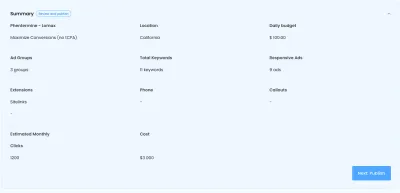
Google shows a summary of your campaign settings. Review everything — ad copy, keywords, targeting, budget, and billing. Click Submit to create your account and launch your first campaign.
Your ads typically go through a review process that takes 1–2 business days before they start showing.
How to Create a Google Ads Account Without a Campaign
If you want to explore the Google Ads interface before committing to a campaign, you can create an account without launching ads.
Step 1: Start the Normal Setup
Go to ads.google.com and click Start Now.
Step 2: Switch to Expert Mode
When Google asks about your advertising goal, look for the Switch to Expert Mode link at the bottom of the page. Click it.
Step 3: Select "Create an Account Without a Campaign"
At the bottom of the Expert Mode goal selection screen, click Create an account without a campaign.
Step 4: Confirm Your Settings
Set your billing country, time zone, and currency. These are permanent — double-check before confirming.
Step 5: Submit
Click Submit to create your account. You now have a Google Ads account with no active campaigns and no charges. You can explore the dashboard, set up conversion tracking, and research keywords using Google's Keyword Planner before launching your first campaign.
Google Ads Manager Account (MCC) — For Agencies
If you manage Google Ads for multiple businesses, you need a Manager Account (also called MCC — My Client Center) instead of a standard account.
A Manager Account lets you:
- Access multiple Google Ads accounts from one login
- Switch between client accounts without signing in and out
- Set up billing across accounts
- Share audiences and remarketing lists
To create one, visit ads.google.com/home/tools/manager-accounts and follow the setup process.
What to Do After Creating Your Account
Set Up Conversion Tracking
Without conversion tracking, you cannot measure whether your ads generate actual business results. Install the Google Ads tag on your website or connect Google Analytics to track form submissions, phone calls, purchases, or other valuable actions.
Plan Your Account Structure
Organize your campaigns and ad groups logically:
- Campaigns — separate by product line, service, or geographic area
- Ad groups — group closely related keywords together
- Ads — write specific ad copy for each ad group
A clean account structure improves quality scores, lowers costs, and makes optimization easier.
Add Negative Keywords
Negative keywords prevent your ads from showing for irrelevant searches. For example, if you sell premium software, you might add "free" as a negative keyword to avoid clicks from people looking for free alternatives.
Review Google's Recommendations Carefully
Google provides automated recommendations in your account. Some are useful — others primarily increase your spending. Evaluate each recommendation based on your actual business goals before accepting.
Save Time with AI-Powered Campaign Creation
Creating campaigns manually inside Google Ads works, but it is time-consuming — especially keyword research, ad group structuring, and bid strategy selection.
CATTIX automates the entire workflow from market analysis to campaign publishing:
- Market Analyzer examines your industry and competitors
- Keyword Analysis collects 1,000+ keywords with search volume and CPC data
- Campaign Forecasting projects clicks and costs before you spend
- Campaign Creator builds optimized ad groups and responsive ads
- One-click publishing sends the campaign directly to your Google Ads account
If you are managing PPC campaigns across multiple clients or want to reduce setup time from hours to minutes, AI-powered Google Ads management eliminates the repetitive work.
Common Mistakes When Setting Up Google Ads
Avoid these errors that waste budget from day one:
- Skipping conversion tracking — without it, you are spending blindly
- Using broad match keywords without negative keywords — leads to irrelevant clicks
- Setting the wrong location targeting — showing ads to people outside your service area
- Choosing the wrong time zone or currency — these cannot be changed later
- Accepting all Google recommendations automatically — not all recommendations align with your goals
- Starting with too many keywords — focus on 10–20 high-intent keywords per ad group initially
FAQ
Is it free to create a Google Ads account?
Yes. Creating a Google Ads account is free. You only pay when someone clicks on your ads (pay-per-click). There is no setup fee, monthly minimum, or contract.
Can I create a Google Ads account without a credit card?
You need a payment method to complete account setup in most countries. However, if you create an account without a campaign, Google may not charge anything until you launch your first ad.
Do I need a website to use Google Ads?
Not necessarily. Google allows you to run call-only ads or use a Google Business Profile as your landing destination. However, a website gives you more campaign options and better conversion tracking.
How long does it take for Google Ads to start working?
Ads typically go through a review process within 1–2 business days. Once approved, they can start showing immediately. However, meaningful performance data usually requires 2–4 weeks of running.
What is the difference between a Google Ads account and a Manager Account?
A standard Google Ads account manages one business. A Manager Account (MCC) lets you manage multiple Google Ads accounts from a single dashboard — ideal for agencies and freelancers.
How much should I spend on Google Ads as a beginner?
Start with $10–$20 per day. This gives you enough data to evaluate which keywords and ads perform best without significant financial risk. Scale your budget based on results.
Can I pause my Google Ads account?
Yes. You can pause individual campaigns or your entire account at any time. You will not be charged while campaigns are paused.
What is the best bidding strategy for beginners?
Start with Maximize Clicks to gather data, then switch to Maximize Conversions or Target CPA once you have enough conversion data (typically 30+ conversions per month).
Eugene Ugolkov is the CEO and Founder of CATTIX, an AI-powered Google Ads management platform. With extensive experience in digital marketing and machine learning, he leads the development of intelligent advertising solutions that help businesses maximize their ROI.